

- お役立ち記事
- Newji notification email customization settings example to ensure you don’t miss important alerts

その単価は妥当か。
AI が根拠付きで分析。
相見積の比較も発注も進捗管理も、ひとつの画面に。

Newji notification email customization settings example to ensure you don’t miss important alerts

目次
Understanding Newji Notification Emails
Newji provides a robust platform that allows you to manage your work effectively.
One of its standout features is the notification email system, which keeps you informed about important updates and alerts.
Understanding how to customize these emails to suit your preferences is crucial for maximizing productivity and never missing out on significant alerts.
Why Customize Newji Notifications?
Customization is key when it comes to notifications.
Default settings might not align with everyone’s communication style or needs.
You may receive too many notifications about insignificant updates while missing out on the critical alerts you prioritize.
By setting up your preferences, you can ensure that you only get notified about what matters most to you.
This not only helps in reducing unwanted email clutter but also enhances your focus on priority tasks.
Steps to Customize Newji Notification Emails
Step 1: Access Notification Settings
Start by logging into your Newji account.
Once you’re in, navigate to the ‘Settings’ section, often represented by a gear icon on your dashboard.
Within the settings, you will find ‘Notification Settings.’
Click on it to start customizing your email alerts.
Step 2: Choose Email Preferences
Under ‘Notification Settings,’ go to the ‘Email Preferences’ section.
Here, you can select which types of notifications you want to receive via email.
Newji allows you to choose from a variety of alerts such as updates on projects, mentions in comments, deadlines, and more.
Evaluate your needs and select only those categories that are most relevant to your responsibilities.
Step 3: Set Frequency of Notifications
Apart from choosing the types of notifications, you can also control how frequently you receive them.
Options typically include real-time alerts, daily summaries, or weekly digests.
If you prefer staying constantly updated, opt for real-time notifications.
Alternatively, daily or weekly summaries work well if you are looking to minimize distractions and focus on reviewing updates at designated times.
Step 4: Adjust Notification Formats
Newji provides options to modify the email format according to your preference.
You may select between HTML and plain text formats.
HTML emails are visually appealing and can be easier to navigate, while plain text emails are straightforward and simple.
Consider your device compatibility and personal ease-of-use when choosing the format.
Additional Tips for Effective Notification Management
Create Email Filters
Enhance your email management by setting up filters in your email client.
You can create rules that automatically sort Newji notifications into designated folders based on criteria such as keywords or sender address.
This way, your inbox remains organized, and you can quickly access important alerts.
Use Priority Alerts
Newji may offer an option to mark certain notifications as ‘priority.’
Enabling this feature ensures that the most critical alerts are flagged in your emails and thus not overlooked in your inbox.
This is especially useful for managers or project leaders who need to stay on top of crucial updates.
Periodically Review Settings
Your project needs and priorities can change over time.
Regularly reviewing and adjusting your notification settings ensures that they remain aligned with your current workflow.
Make it a habit to check your settings monthly or quarterly to implement any necessary changes.
Benefits of Optimized Notification Settings
Customizing your Newji notification emails offers several benefits.
First, it reduces information overload by allowing you to receive only relevant updates.
Second, it helps in maintaining a cleaner and more organized inbox, which in turn enhances your productivity.
Finally, with well-structured notifications, you are less likely to miss out on important tasks or deadlines, ensuring smooth project progress.
Conclusion
Customizing your Newji notification emails tailored to your specific needs can significantly improve how you manage your work updates and alerts.
By following the steps outlined above and incorporating additional tips, you can ensure that you never miss an important update again.
Take control of your notifications today to enhance your productivity and achieve better outcomes in your projects.
この記事の理解を深める
無料ホワイトペーパーをプレゼント
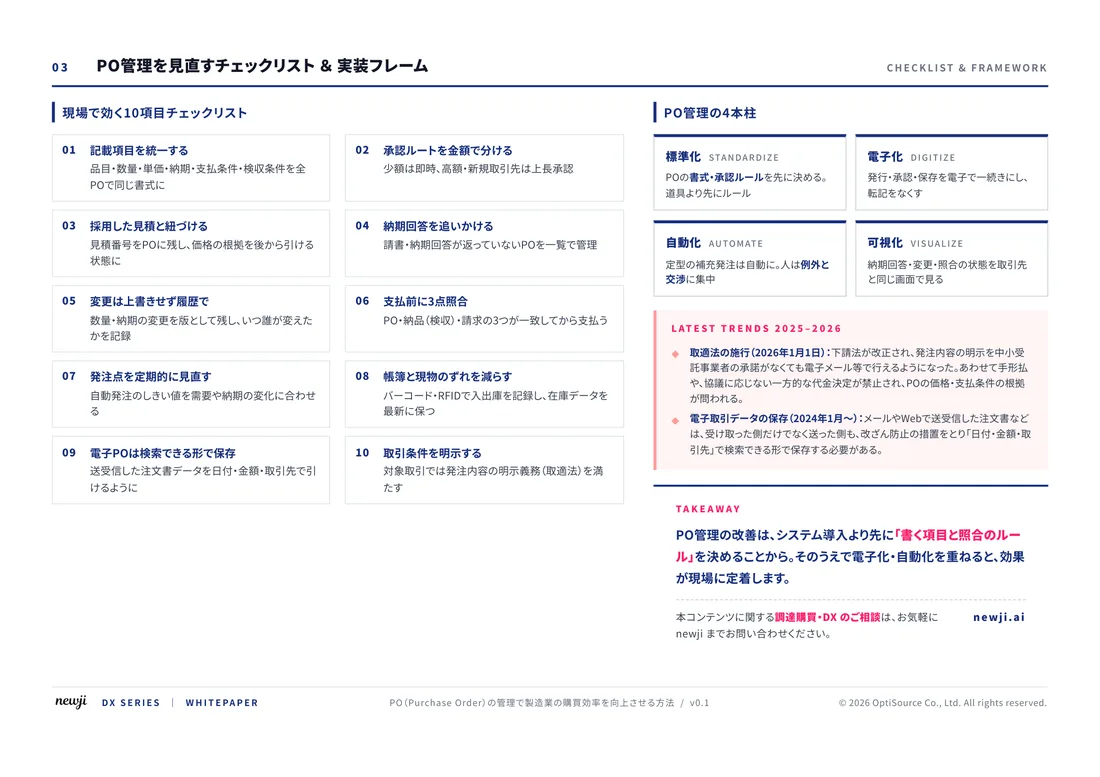
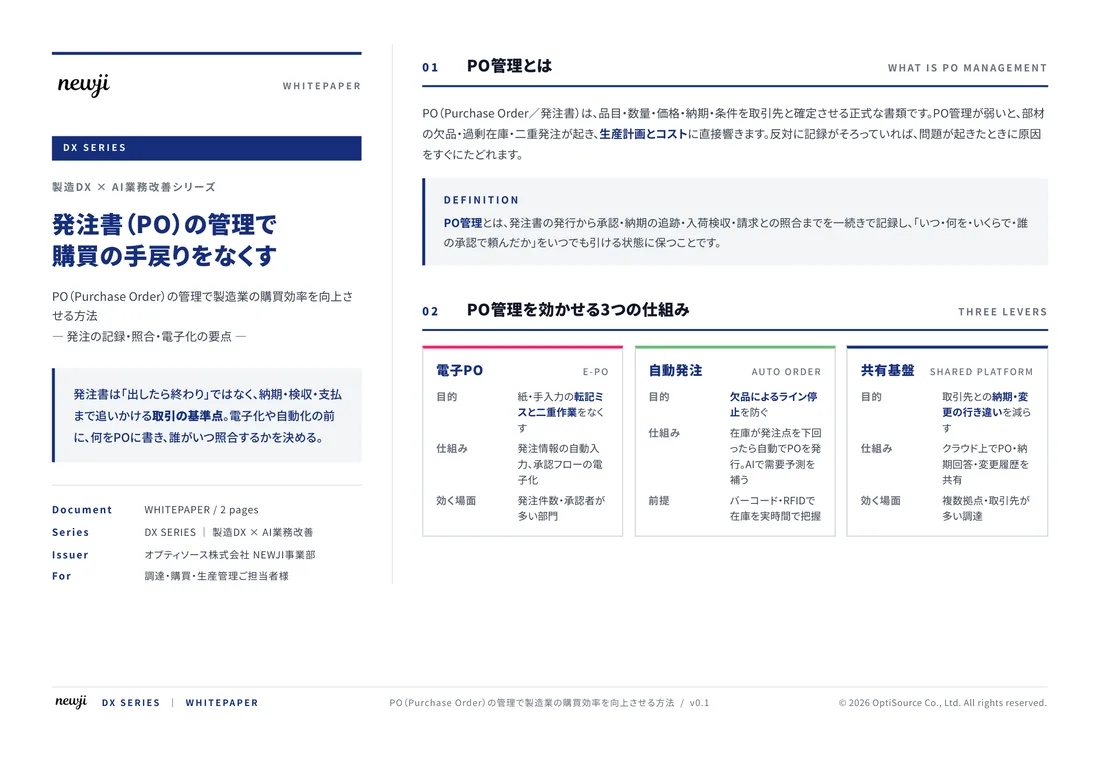
製造業の現場で使える実務資料(PDF)を無料でお届けします。"こんな資料が届きます" ↓ 下のボタンからどうぞ。
FREE DOCUMENT — サービス資料(PDF・無料)
製造業の見積・受発注クラウド
「Newji one」とは
Newji one は、製造業の調達・受発注に特化したクラウド/AIエージェント。見積依頼・発注書作成・進捗管理・承認をひとつの画面に集約し、AIが比較と異常検知を担当。最後の「GO」だけ人が押す仕組みです。
▶ 製造業の見積・受発注クラウド「Newji one」を、資料で見る(PDF・無料)
- 見積〜発注〜納期を一元管理。催促・転記のムダをゼロに
- AIが相見積もり比較と異常検知。あなたは判断だけに集中
- 取引先は「招待」で完全無料。自社コストだけで取引先ごとデジタル化
※ 取引先から招待された企業様は完全無料でご利用いただけます
関連記事
-

Digital Marketing for Manufacturing to Transform the Customer Experience
-

Monday.comで構築!製造業の生産スケジュール管理
-

購買管理システム比較23選 製造業調達購買部門必見
-

Optimizing Production Scheduling for On-Time Delivery and Efficiency in Manufacturing!
-
半導体にはどのような電子部品が搭載されているのか?
-
Optimizing the Supply Chain: Enhancing Global Competitiveness through Manufacturing DX
 NEWJI総研
 OEM/ODM 生産委託
 AI/DX支援
 見積・発注クラウド Newji one
受発注が増えるほど、入力・確認・催促が重くなる。
受発注管理を“仕組み化“して、ミスと工数を削減しませんか。
見積・発注・納期まで一元管理できます。