

- お役立ち記事
- Efficient reading and writing of Excel sheets

その単価は妥当か。
AI が根拠付きで分析。
相見積の比較も発注も進捗管理も、ひとつの画面に。

Efficient reading and writing of Excel sheets

目次
Understanding Excel Sheets
Excel sheets are powerful tools for managing and analyzing data.
Used in various fields like business, education, and personal finances, Excel helps organize information in a systematic way.
With rows and columns, Excel transforms a sea of data into understandable segments.
Reading and writing in Excel might seem daunting at first, but once you understand the basics, it becomes a breeze.
Before diving into specifics, it’s important to know the layout of an Excel sheet.
Excel consists of grids of cells made by rows (numerical) and columns (alphabetical).
Reading Excel Sheets
When you open an existing Excel sheet, you are essentially ‘reading’ it.
The data organized in rows and columns can be numerical, textual, or a mix of both.
To efficiently read Excel sheets, focus on these practices:
1. Use Excel’s Filters
Filters are a quick way to display only the data you need.
By using filters, you can hide unwanted information, allowing you to concentrate on specific results.
To set a filter, go to the Data tab, then click on Filter.
Excel will add dropdown arrows in your column headers.
Click these arrows to choose criteria and filter your data accordingly.
2. Conditional Formatting
Conditional formatting allows you to apply specific formatting based on cell value conditions.
For example, you can highlight all sales figures above a certain amount.
This visual cue makes data trends and outliers readily apparent.
To apply conditional formatting, head to the Home tab, select Conditional Formatting, and choose your rules.
Writing Excel Sheets
Writing into Excel sheets involves entering data accurately and efficiently.
Whether you are inputting numbers, text, or formulas, the process must be seamless.
1. Use Shortcuts
Excel has numerous keyboard shortcuts that save time when entering data.
For example, Ctrl + “;” inserts the current date, while F2 lets you edit the active cell quickly.
Familiarizing yourself with such shortcuts enhances writing speed and accuracy.
2. Implement Formulas
Formulas transform how you interact with Excel.
They process data automatically, eliminating manual calculation errors.
Basic formulas like SUM, AVERAGE, and COUNT are essential, and mastering them is a step towards efficiency.
For instance, to sum values in cells from B2 to B10, you’d enter =SUM(B2:B10).
3. Automate with Macros
Macros are sequences of instructions that automate repetitive tasks in Excel.
Recording a macro allows Excel to repeat these tasks on your command, consequently saving considerable time.
Access macros via the View tab, under Macros.
Advanced Tips for Efficiency
1. Use Excel Tables
Converting your data range into a table enhances functionality.
Tables offer superior sorting, filtering options, and automatic expansion when new data is added.
To create a table, select your data range, go to the Insert tab, and click on Table.
2. Explore Power Query
Power Query is Excel’s tool for connecting, combining, and refining data from various sources.
It is invaluable for complex data manipulation and saves several manual steps.
To begin, you’ll find Power Query within the Data tab.
Enhancing Collaboration
Excel supports collaborative work, making it essential to ensure all team members can access and edit the sheets seamlessly.
1. Share Through Cloud Services
Using cloud services like OneDrive or Google Drive for shared access ensures that everyone involved always views the latest version of the sheet.
This approach minimizes version control issues and makes collaboration smoother.
2. Track Changes
Tracking changes allows you to see edits made by others.
This transparency enhances accountability and boosts communication among team members.
Enable Track Changes in the Review tab for clear documentation of edits.
Conclusion
Efficient reading and writing of Excel sheets are essential skills in today’s data-centric world.
Whether managing personal budgets or conducting elaborate business analysis, mastering Excel’s tools and features can significantly improve productivity.
Regular practice, alongside the use of shortcuts and advanced tools like macros and Power Query, ensures a seamless and effective data management experience.
Remember, the more you delve into Excel, the more adept you become at handling its powerful capabilities.
この記事の理解を深める
無料ホワイトペーパーをプレゼント
製造業の現場で使える実務資料(PDF)を無料でお届けします。"こんな資料が届きます" ↓ 下のボタンからどうぞ。
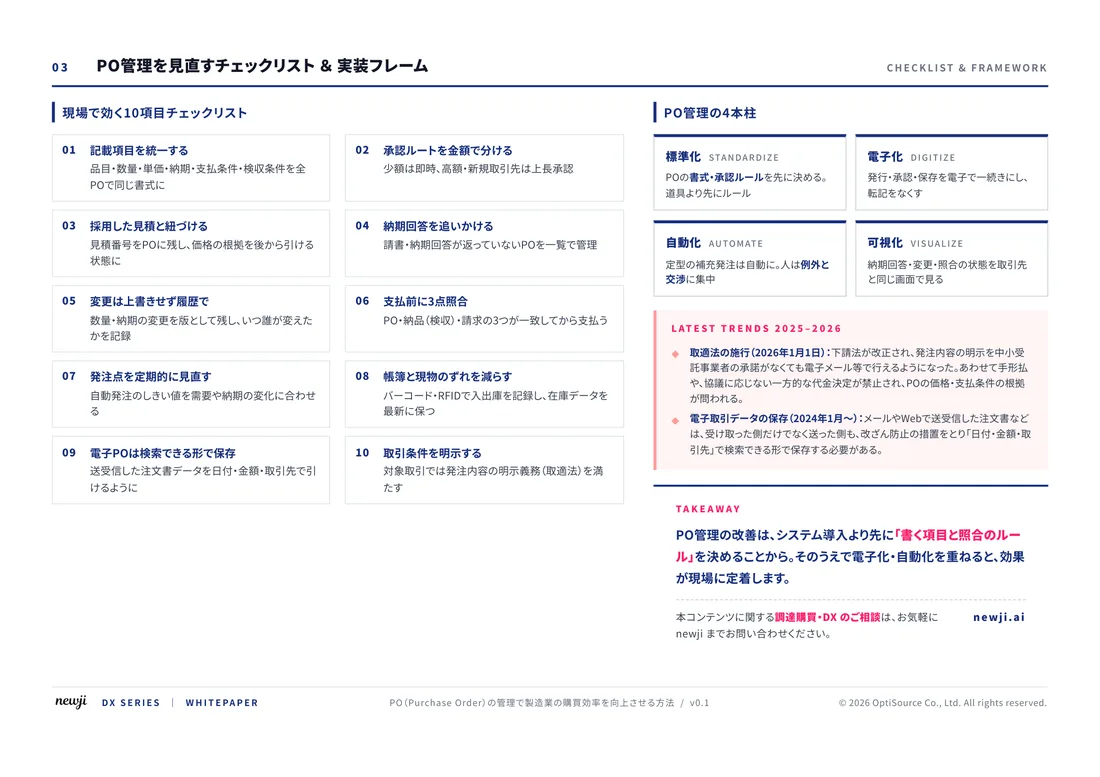
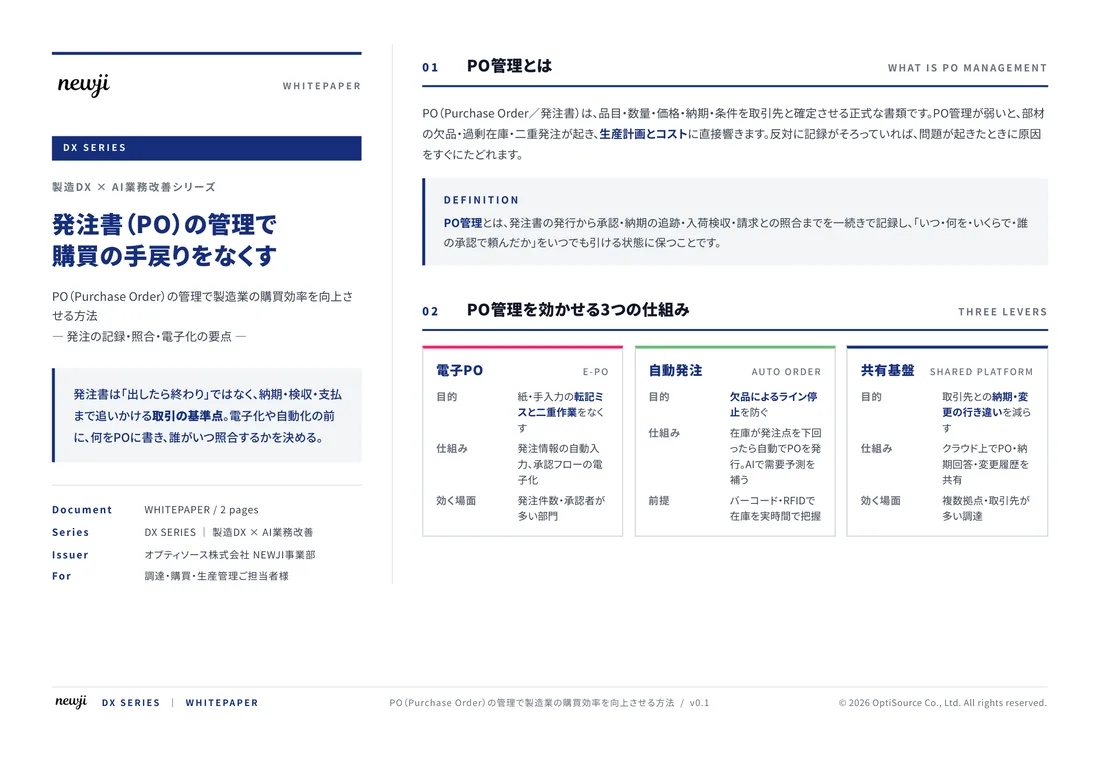
FREE DOCUMENT — サービス資料(PDF・無料)
製造業の見積・受発注クラウド
「Newji one」とは
Newji one は、製造業の調達・受発注に特化したクラウド/AIエージェント。見積依頼・発注書作成・進捗管理・承認をひとつの画面に集約し、AIが比較と異常検知を担当。最後の「GO」だけ人が押す仕組みです。
▶ 製造業の見積・受発注クラウド「Newji one」を、資料で見る(PDF・無料)
- 見積〜発注〜納期を一元管理。催促・転記のムダをゼロに
- AIが相見積もり比較と異常検知。あなたは判断だけに集中
- 取引先は「招待」で完全無料。自社コストだけで取引先ごとデジタル化
※ 取引先から招待された企業様は完全無料でご利用いただけます

 NEWJI総研
 OEM/ODM 生産委託
 AI/DX支援
 見積・発注クラウド Newji one
受発注が増えるほど、入力・確認・催促が重くなる。
受発注管理を“仕組み化“して、ミスと工数を削減しませんか。
見積・発注・納期まで一元管理できます。