

- お役立ち記事
- Efficient reading and writing of Excel sheets

その単価は妥当か。
AI が根拠付きで分析。
相見積の比較も発注も進捗管理も、ひとつの画面に。

Efficient reading and writing of Excel sheets

目次
Introduction to Excel Sheets
Excel sheets are a powerful tool for organizing, analyzing, and presenting data.
They are widely used in various fields like business, education, and research.
Understanding how to read and write Excel sheets efficiently can significantly enhance productivity and data management.
In this guide, we will explore methods and tips for efficiently handling Excel sheets, enabling you to make the most out of this versatile application.
Understanding Excel Basics
Excel is part of the Microsoft Office Suite and is designed for spreadsheet creation and data manipulation.
It consists of a grid of cells arranged in rows and columns, allowing users to enter, organize, and calculate data.
Each Excel file is called a workbook, which can contain multiple sheets or spreadsheets.
These sheets can be used to separate data for categorization, comparison, and detailed analysis.
Being familiar with basic Excel functions and formulas is essential for efficient data handling.
Key Excel Features
1. **Cells**: The individual boxes where data is entered.
2. **Rows and Columns**: These help organize data in a structured manner.
3. **Formulas and Functions**: Help perform calculations automatically.
4. **Charts and Graphs**: Visual tools for data representation.
5. **Pivot Tables**: Allow dynamic data analysis.
Efficient Reading of Excel Sheets
Reading data from Excel sheets efficiently means extracting the necessary information quickly and accurately.
Setting Up Your Sheet
To begin with, ensure your Excel sheets are well-organized.
Label your columns with clear and descriptive headers.
This step is fundamental for anyone intending to read or process the data later on.
Use sorting and filtering options to find specific data quickly.
Excel’s “Filter” and “Sort” features are valuable for accessing specific rows or organizing data in a meaningful order.
Using Excel Functions
Take advantage of built-in Excel functions to automate data extraction.
Functions like `VLOOKUP`, `HLOOKUP`, `INDEX`, and `MATCH` are incredibly useful for finding specific data within your sheets.
Utilizing these functions reduces the time spent manually searching through data, enhancing efficiency.
Loading Data Efficiently
If working with large datasets, consider breaking them into smaller chunks or importing them using data connection features within Excel.
This method decreases the time delay during loading and processing, allowing faster data access.
Efficient Writing of Excel Sheets
Writing data efficiently means entering and organizing data in a way that maximizes accessibility and minimizes errors.
Data Entry Tips
When entering data into Excel, use data validation tools.
Data validation ensures that data entered into your sheet meets specific criteria, reducing the risk of errors and maintaining data integrity.
For repetitive entries, use the “AutoFill” feature to quickly duplicate series or formulas across cells, saving time and effort.
Organizing Your Data
Maintain consistency in data formatting.
A consistent format helps when running calculations or creating reports.
Use cell formatting options such as “Number”, “Currency”, or “Date” to standardize the input.
Create a logical structure within your sheets.
Use separate sheets for different categories of data and link them when necessary.
This keeps the data organized and prevents clutter.
Utilizing Formulas
Use Excel formulas to automate calculations and data manipulation.
Master basic formulas like `SUM`, `AVERAGE`, `COUNT`, and more advanced ones like `IF` statements.
Understanding formulas and how they work helps in reducing the manual labor involved in recalculating data.
Advanced Techniques for Efficiency
To further enhance your capability in handling Excel sheets, incorporate advanced techniques and tools.
Macros and VBA
Macros automate repetitive tasks in Excel.
Recording a macro can save you time on tasks that need to be performed regularly.
Moreover, Visual Basic for Applications (VBA) is a powerful tool that allows the creation of complex macros tailored to your specific needs.
Using Add-ins
Add-ins can be installed to extend Excel’s functionality.
For instance, Power Query can be used to efficiently transform data before importing it into Excel.
It allows for cleaning and reshaping data, which can make the reading and writing process more efficient.
Conclusion
Efficient reading and writing of Excel sheets is crucial for anyone dealing with data regularly.
Through proper setup, strategic use of Excel’s built-in features, and utilizing advanced techniques like macros, users can enhance productivity and ensure accuracy.
By mastering these methods, you can transform your Excel sheets into a powerful resource for analysis, reporting, and decision-making.
Remember to keep practicing and experimenting with different features and tools to harness Excel’s full potential.
この記事の理解を深める
無料ホワイトペーパーをプレゼント
製造業の現場で使える実務資料(PDF)を無料でお届けします。"こんな資料が届きます" ↓ 下のボタンからどうぞ。
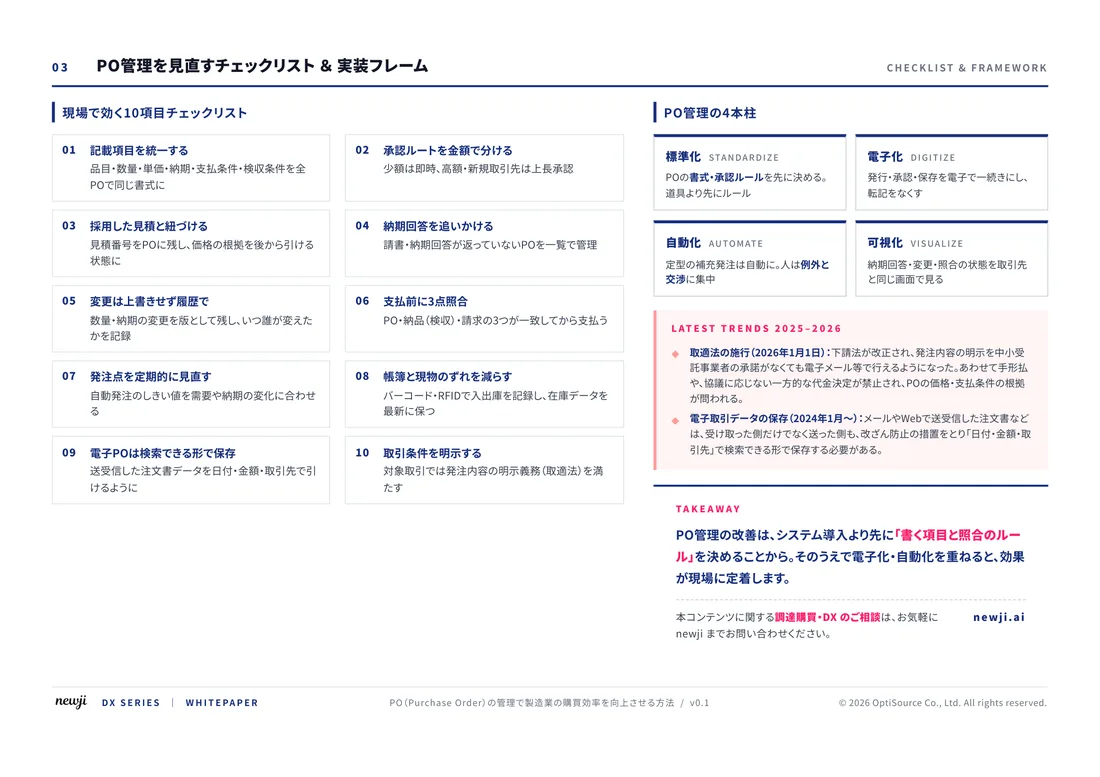
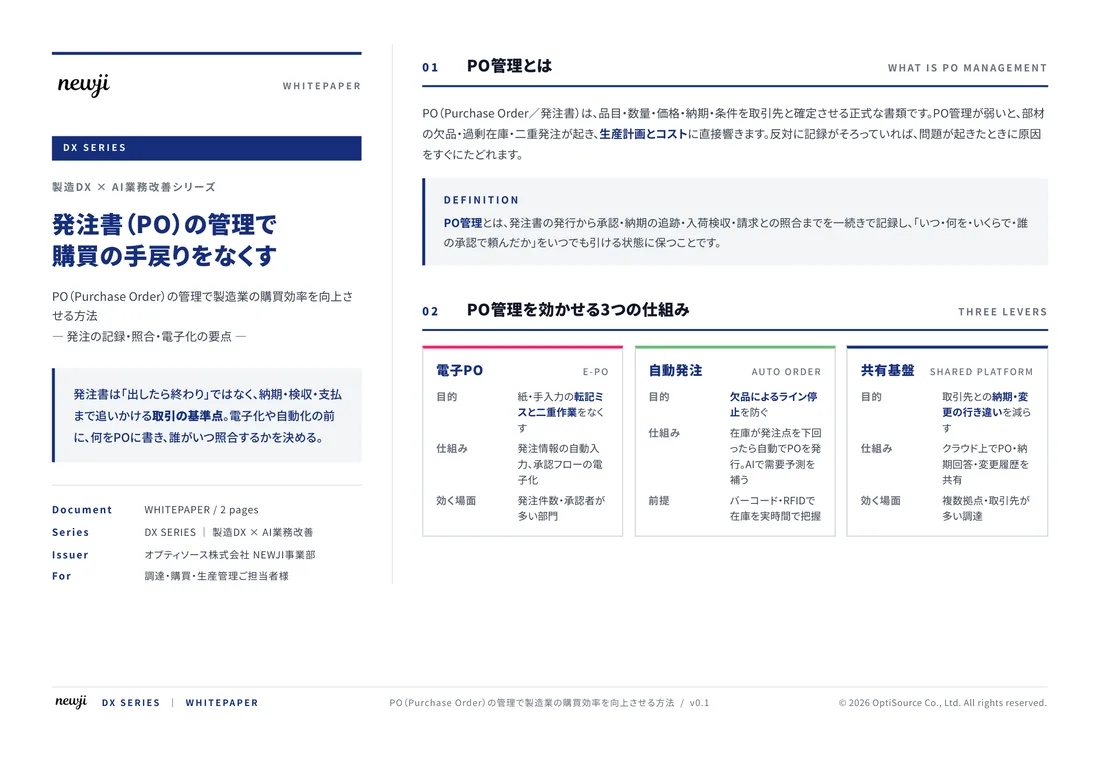
FREE DOCUMENT — サービス資料(PDF・無料)
製造業の見積・受発注クラウド
「Newji one」とは
Newji one は、製造業の調達・受発注に特化したクラウド/AIエージェント。見積依頼・発注書作成・進捗管理・承認をひとつの画面に集約し、AIが比較と異常検知を担当。最後の「GO」だけ人が押す仕組みです。
▶ 製造業の見積・受発注クラウド「Newji one」を、資料で見る(PDF・無料)
- 見積〜発注〜納期を一元管理。催促・転記のムダをゼロに
- AIが相見積もり比較と異常検知。あなたは判断だけに集中
- 取引先は「招待」で完全無料。自社コストだけで取引先ごとデジタル化
※ 取引先から招待された企業様は完全無料でご利用いただけます

 NEWJI総研
 OEM/ODM 生産委託
 AI/DX支援
 見積・発注クラウド Newji one
受発注が増えるほど、入力・確認・催促が重くなる。
受発注管理を“仕組み化“して、ミスと工数を削減しませんか。
見積・発注・納期まで一元管理できます。